From order to invoice.
You run the job the way you always have: parts, hours, photos. The invoice builds itself from what you already logged and files straight to KSeF. And because you record the buy price on every part, the job tells you what an invoicing tool never knows — what you kept on that job.
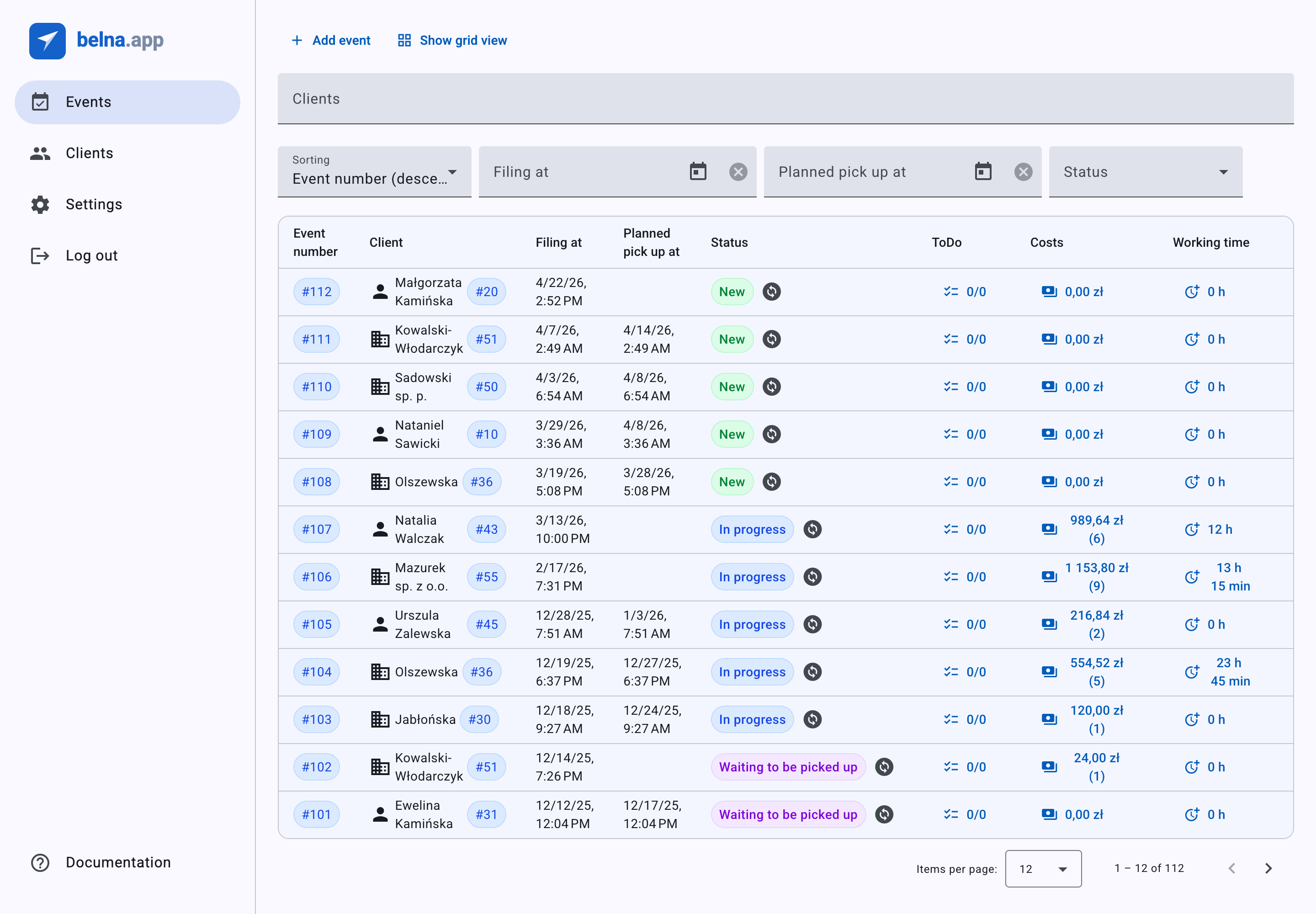
Nothing typed twice
Paperwork comes out of the job, not out of your head
No notebooks, loose scraps or spreadsheets. You run the job in the app, and when it's finished you generate the invoice from it and file it to KSeF.
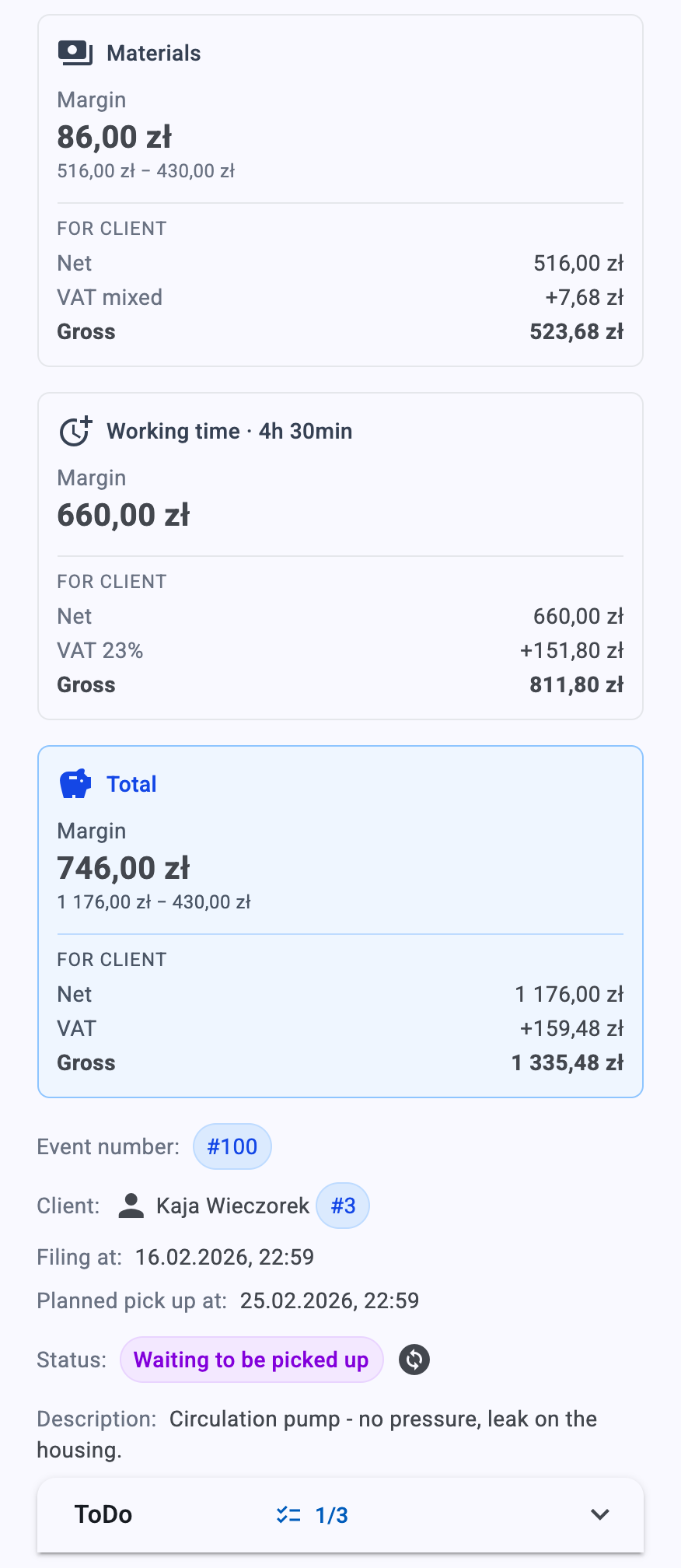
What did you make on it? You know straight away
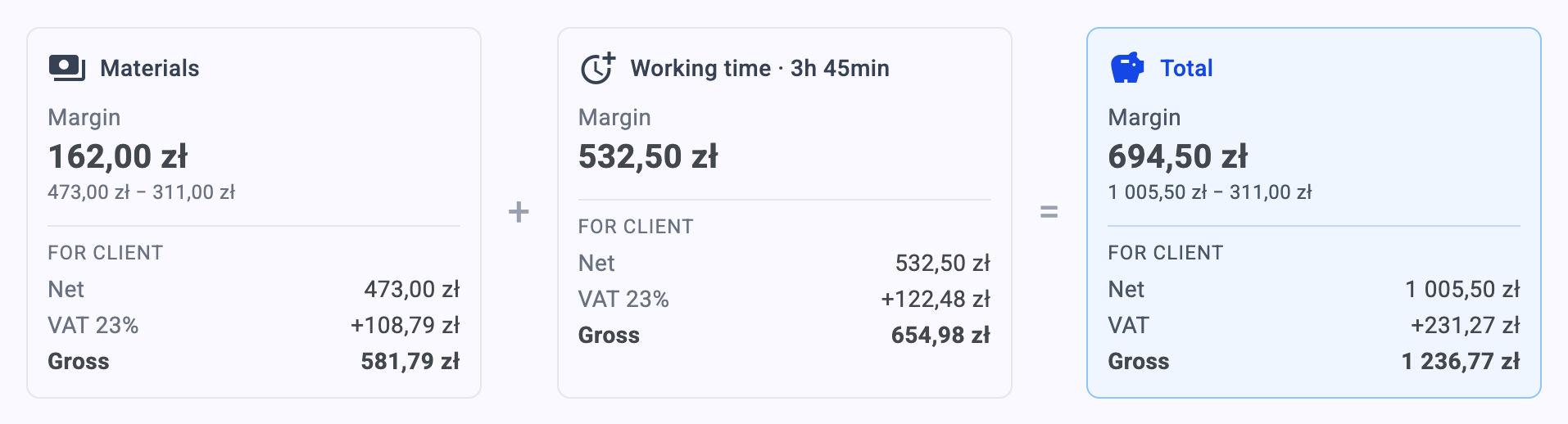
Materials plus working time equals the total — right at the top of the job, next to what the client pays. On parts you even see the sum: what went out on the purchase, what comes back on the sale. An invoicing tool can't work that out; it only knows the price you charged.
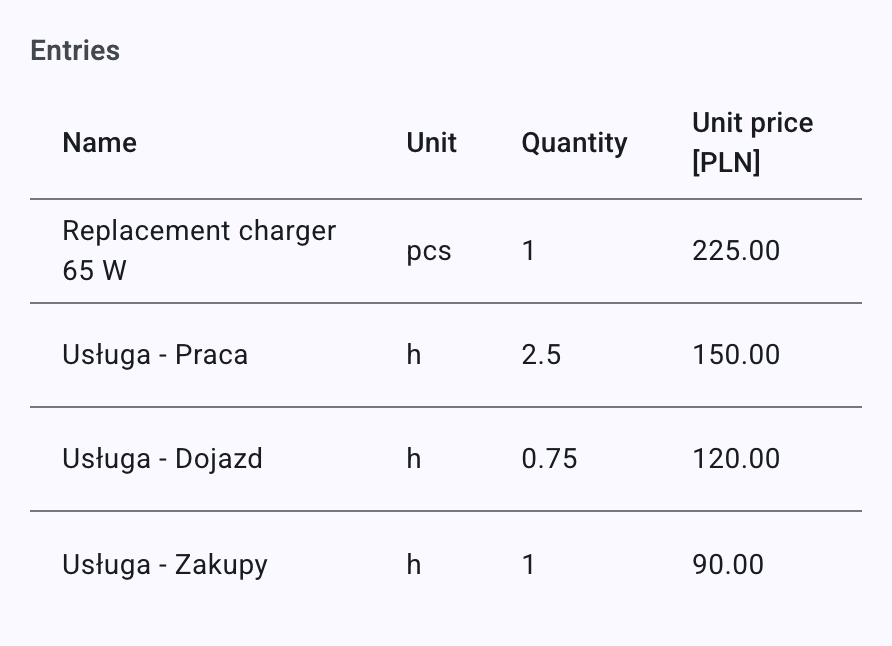
The invoice writes itself — there's no other way
Each part becomes its own line; hours merge into service lines by type. There is no “add line” button on an invoice — whatever appears on it had to be logged on the job first. You review it, you don't retype it.
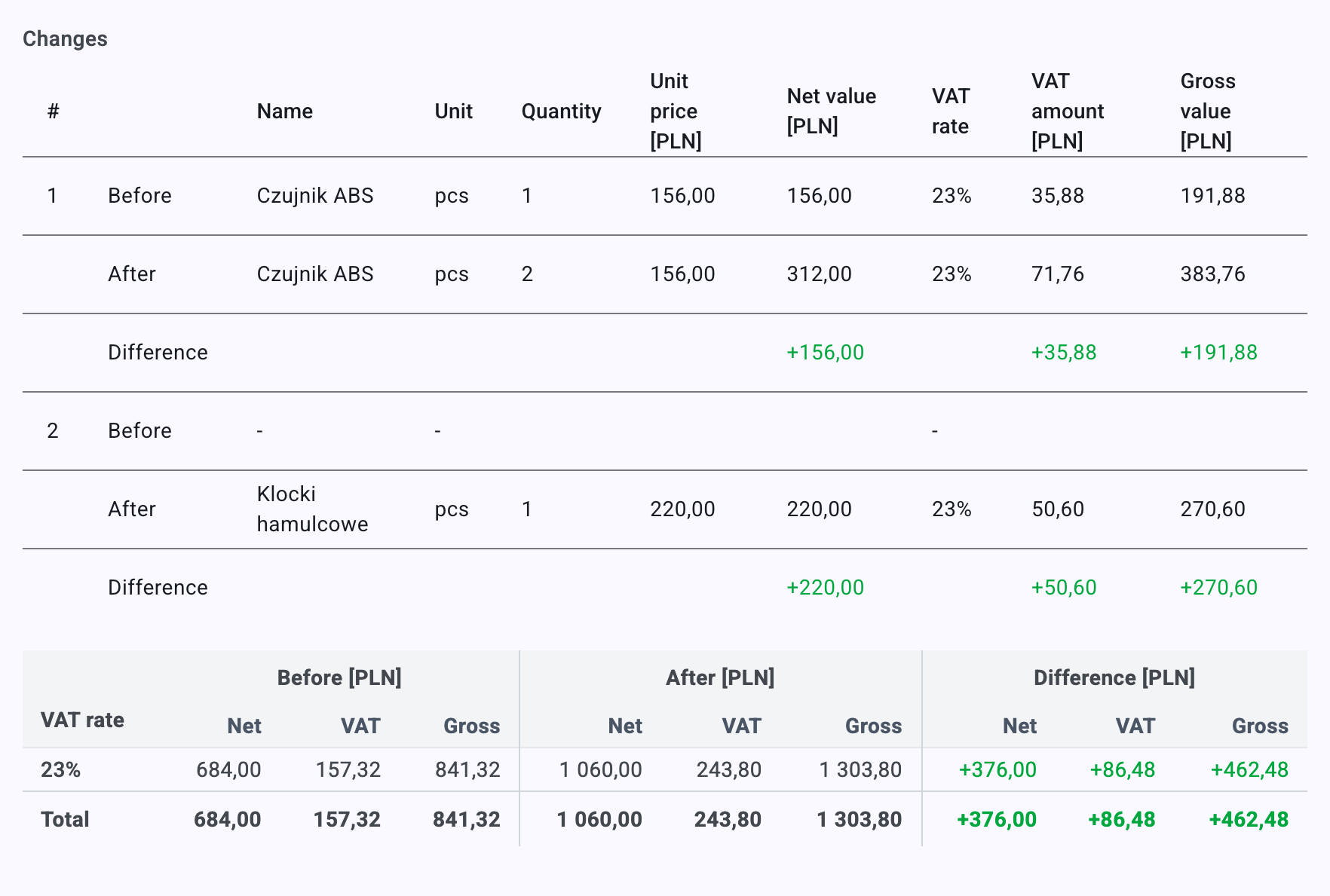
A correction is one sentence of typing
The app writes the correction: it re-reads the job and diffs it line by line against the last document KSeF accepted. All you type is why.
A dated page instead of an argument
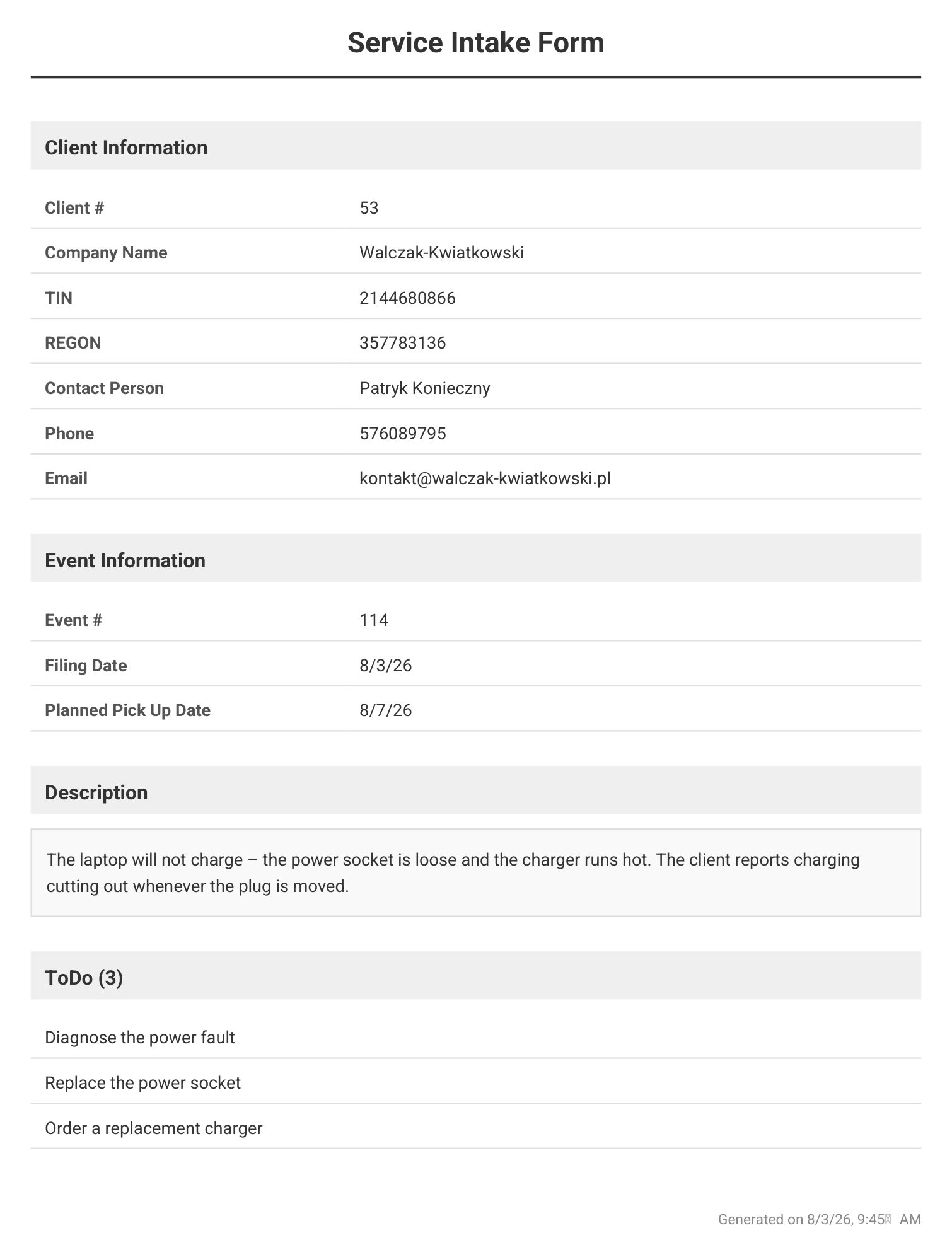
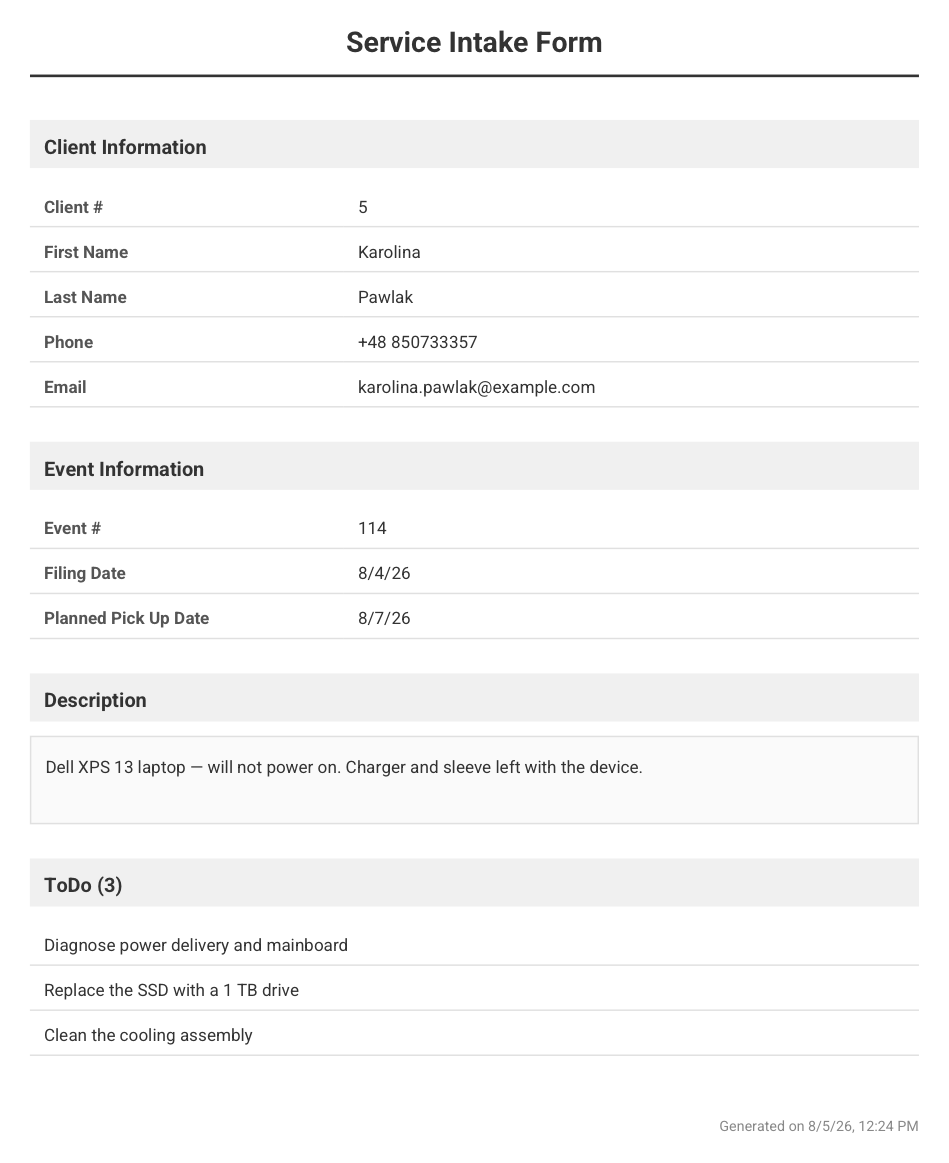
Every job produces a drop-off protocol as a PDF: the client's details frozen as they were that day, the job number, the drop-off and planned pick-up dates, the fault description, the checklist, and the photos attached while creating the job — printed inside the document. When he comes back six weeks later saying it was already cracked, you have an answer.
A modern app
Nothing to install
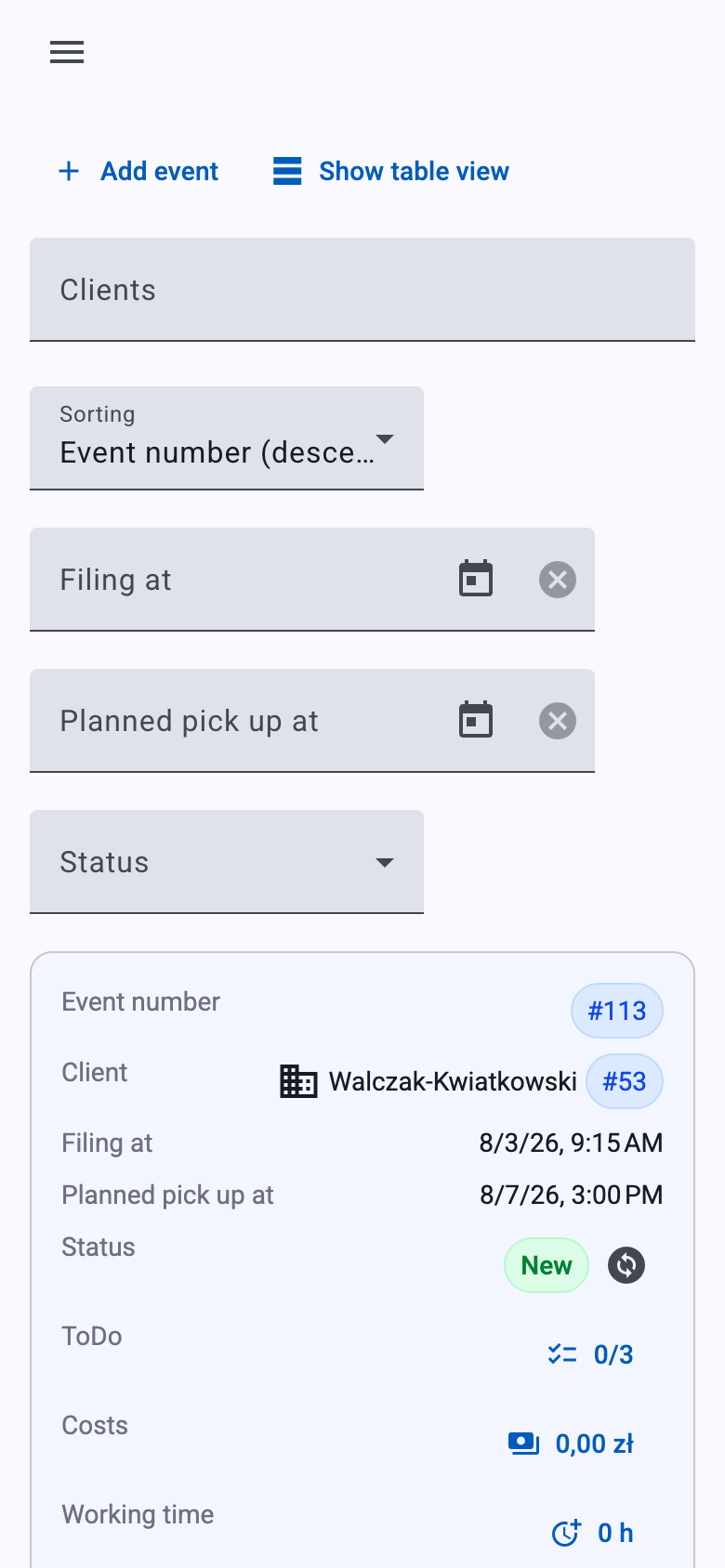
belna.app opens in a browser: on the office computer, on a tablet at the counter, on your phone while you're out fetching a part. Same login, same jobs — no installer, no licence tied to one machine, no database to carry across when you change hardware. All it takes is a connection, and the workshop is with you anywhere in the world.
- Servers and data in Poland.
- The app runs on servers in Poland, and that is where your jobs, invoices, intake forms and photos are processed. Nothing travels to the far side of the world to come back to you as a line on somebody else's dashboard.
- You pay to use it, not to own a version.
- There's no box to buy and no licence that stops matching the law in two years. The app is developed continuously and the new version simply appears — no installer, no paid upgrade, no evening lost to a setup wizard.
- Security keeps up with the threats.
- The internet invents a new way to get at other people's data every month, so the app is adapted to whatever is going around at the time. The fixes land on our side — you neither have to hear about them nor click anything at your end.
One job, from drop-off to pick-up
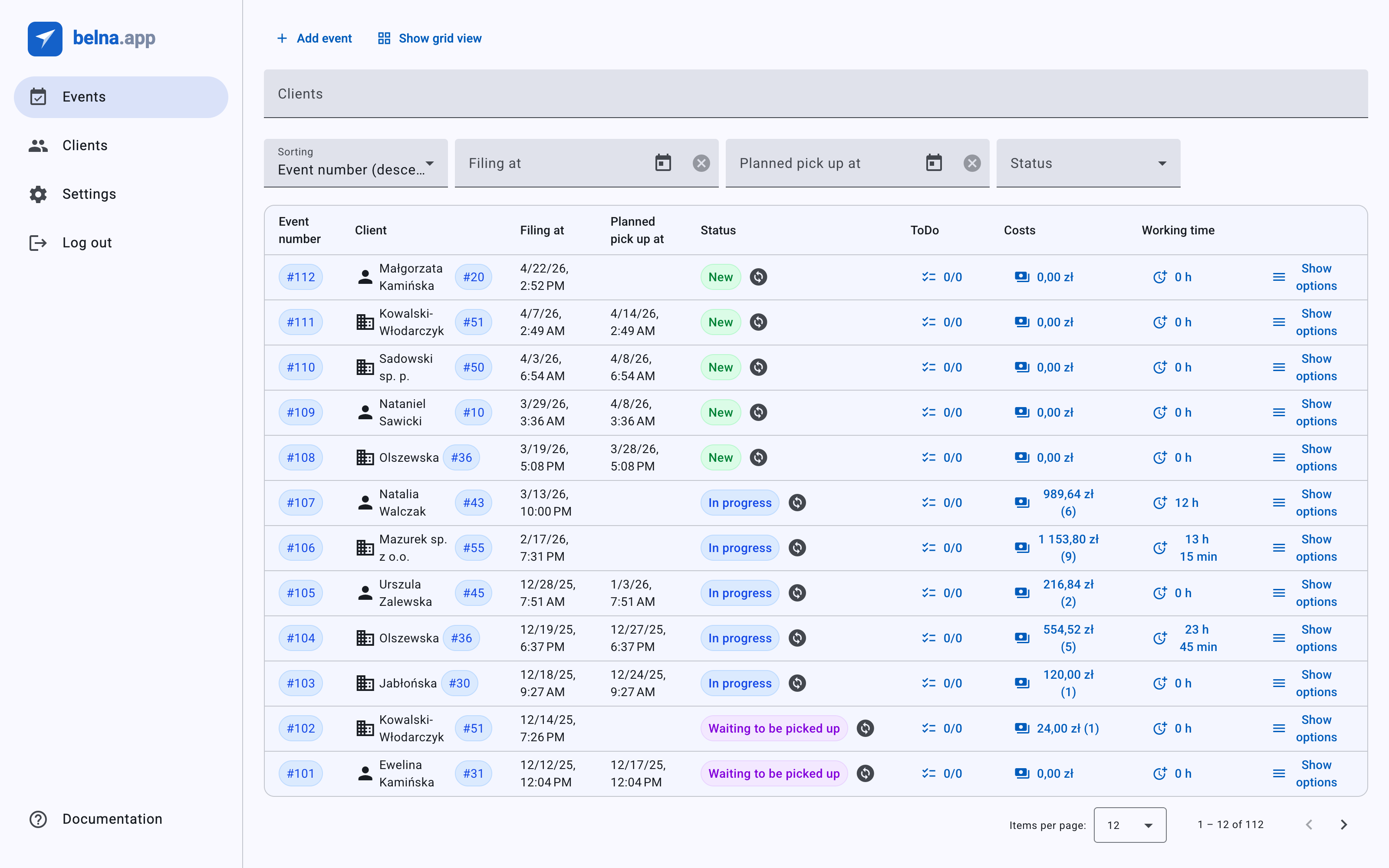
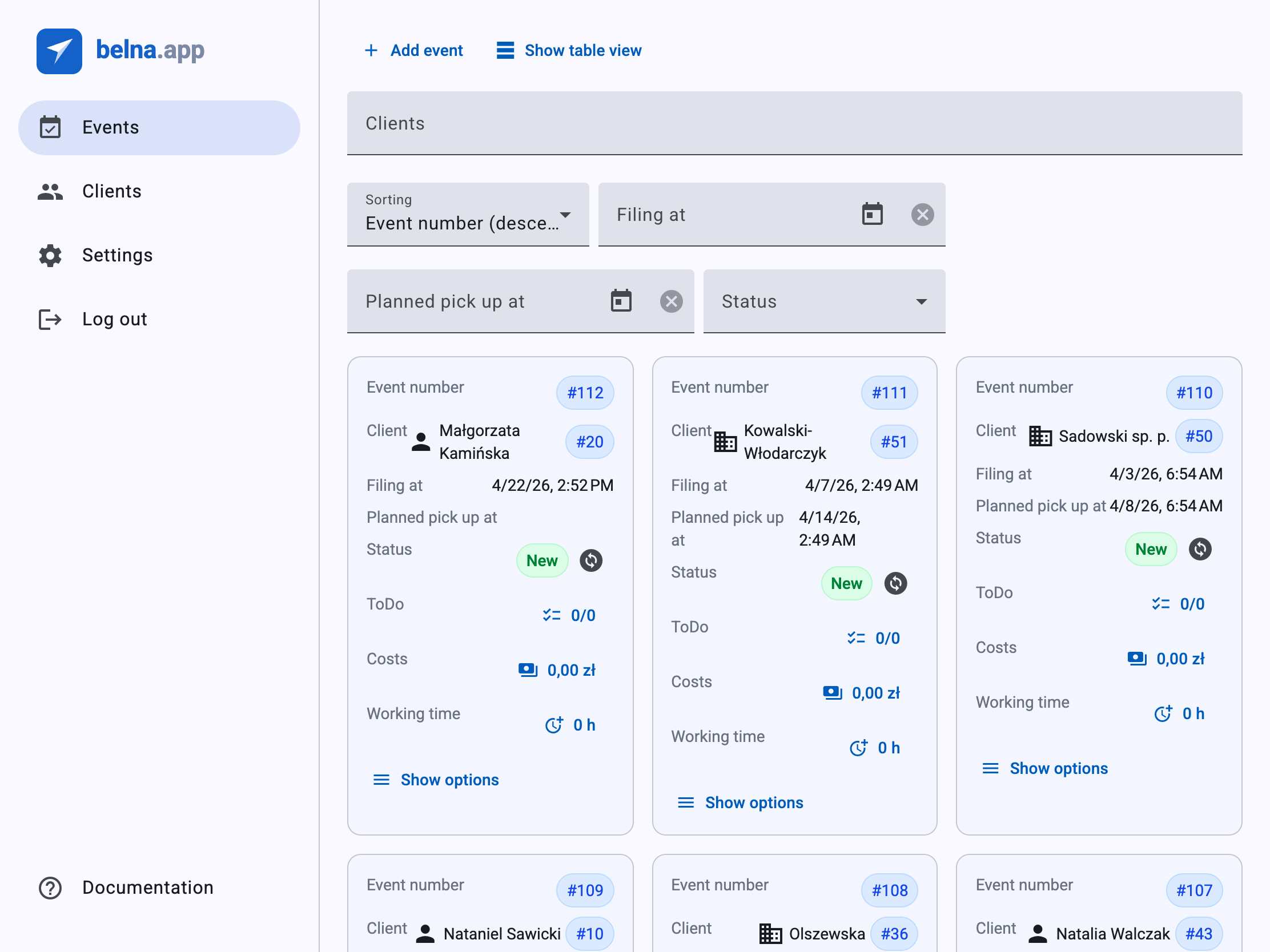
The whole job hangs off a single record. You open it at the counter and only ever add to it — parts, hours, photos — and the intake form, the margin and the KSeF invoice fall out of it along the way. Nothing gets typed a second time.
-
01
Drop-off
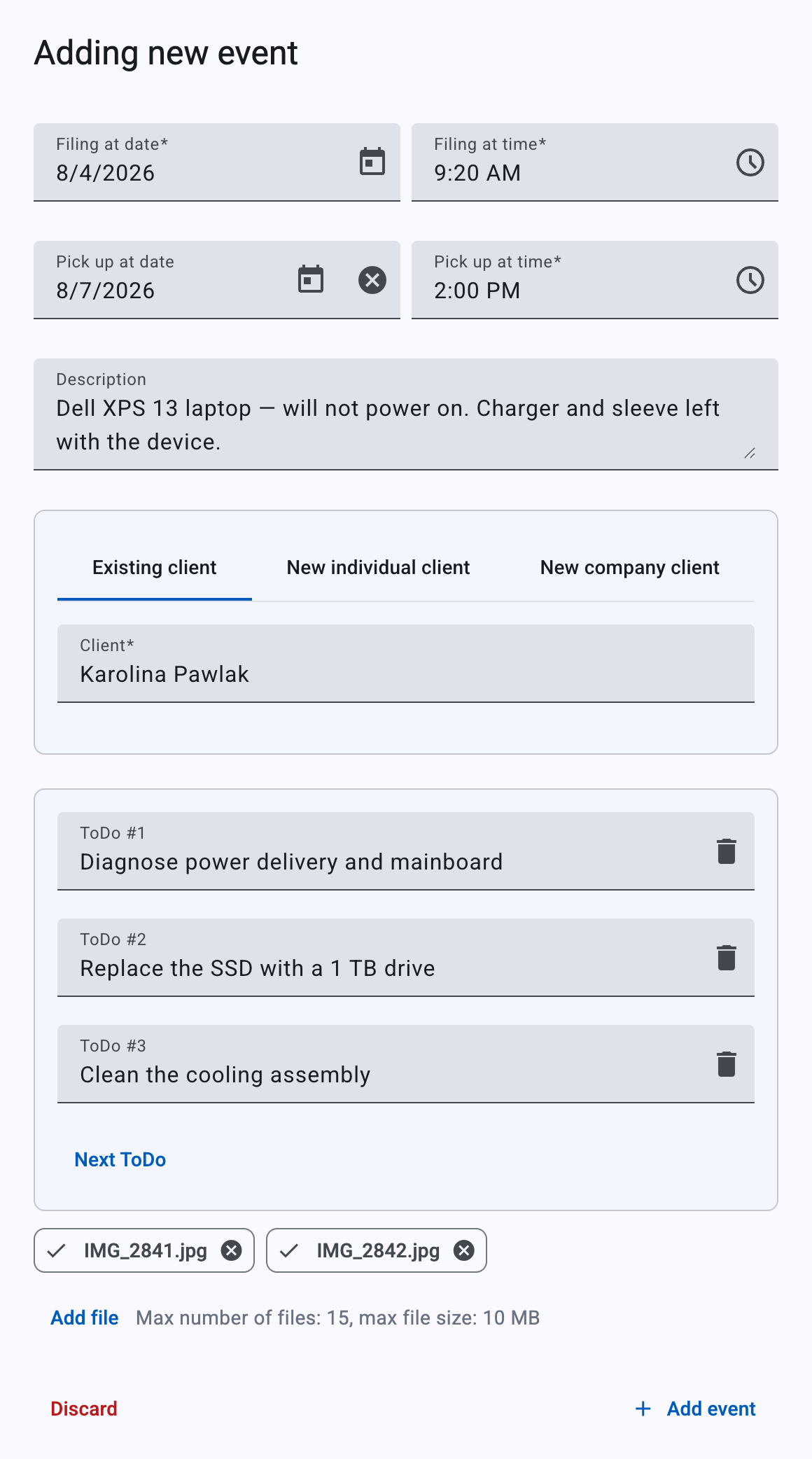
The customer puts the machine on the counter and you open the job: a customer from your list or typed in there and then, the intake date, the expected pick-up, the fault, a checklist and photos. The number assigns itself.
-
02
Intake form
A PDF is built in the background: the customer's details frozen as of that day, the fault, the checklist and the photos pasted into the document. Print it and have it signed, before anyone starts remembering it differently.
-
03
Parts and hours
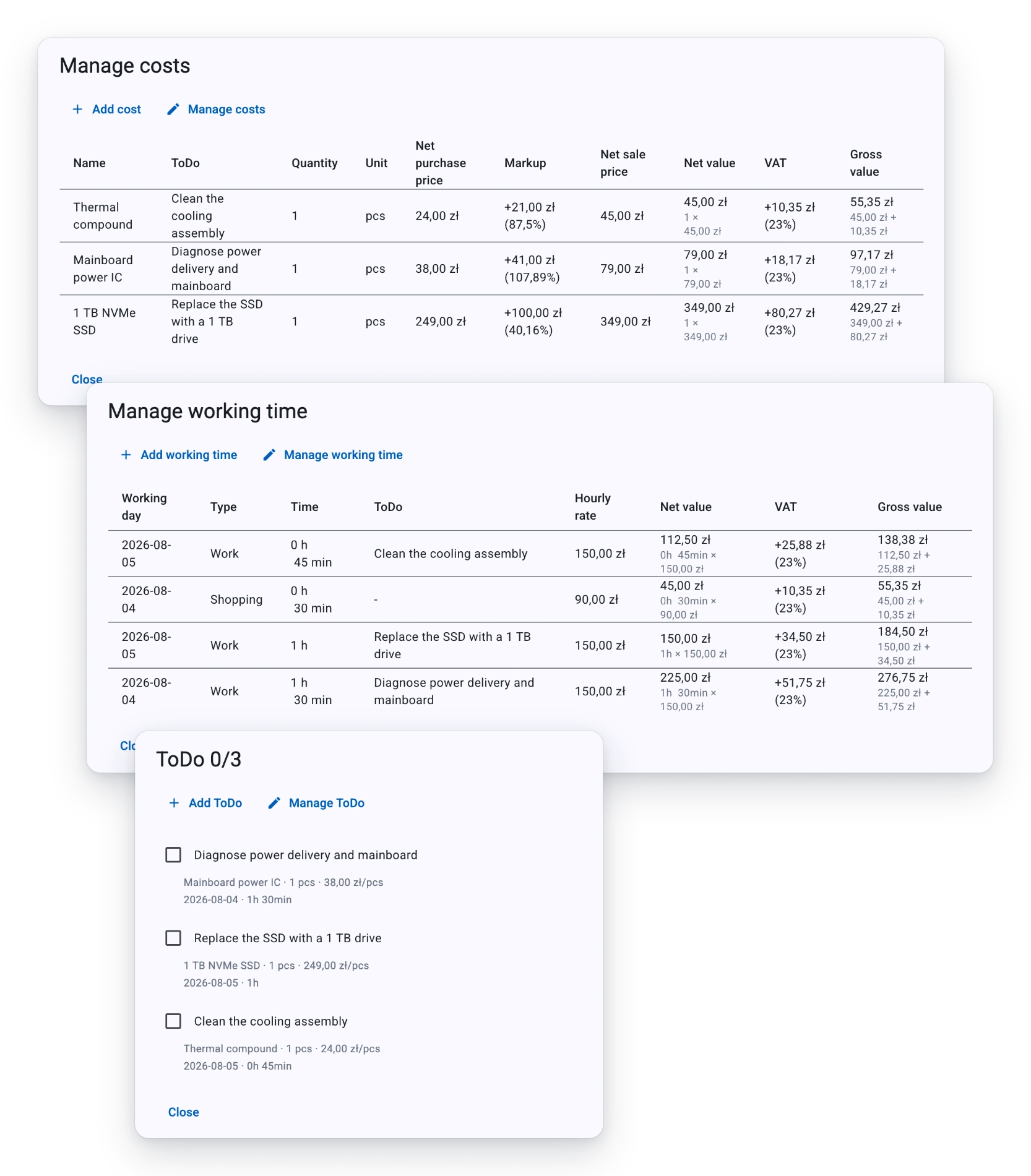
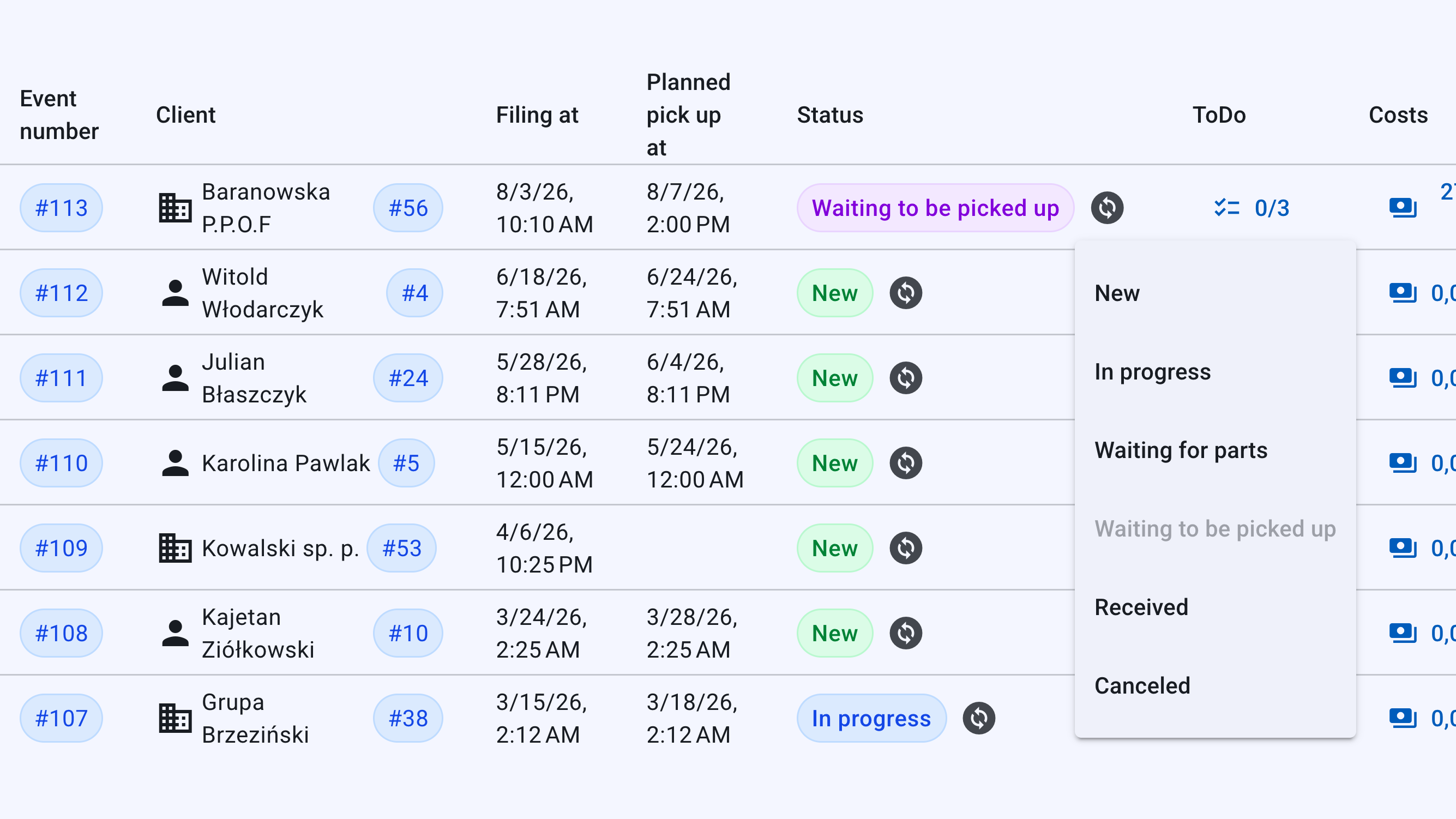
Everything goes onto the job as the work happens: a part with both its purchase and its sale price, an hour with its own type — labour, travel, parts run, quoting, other. The status changes in two clicks straight from the list.
-
04
What's left
Materials, working time and the total sit at the top of the job next to what the customer pays — the whole time, not a week after invoicing. You set the price knowing how much of it stays with you.
-
05
The draft invoice
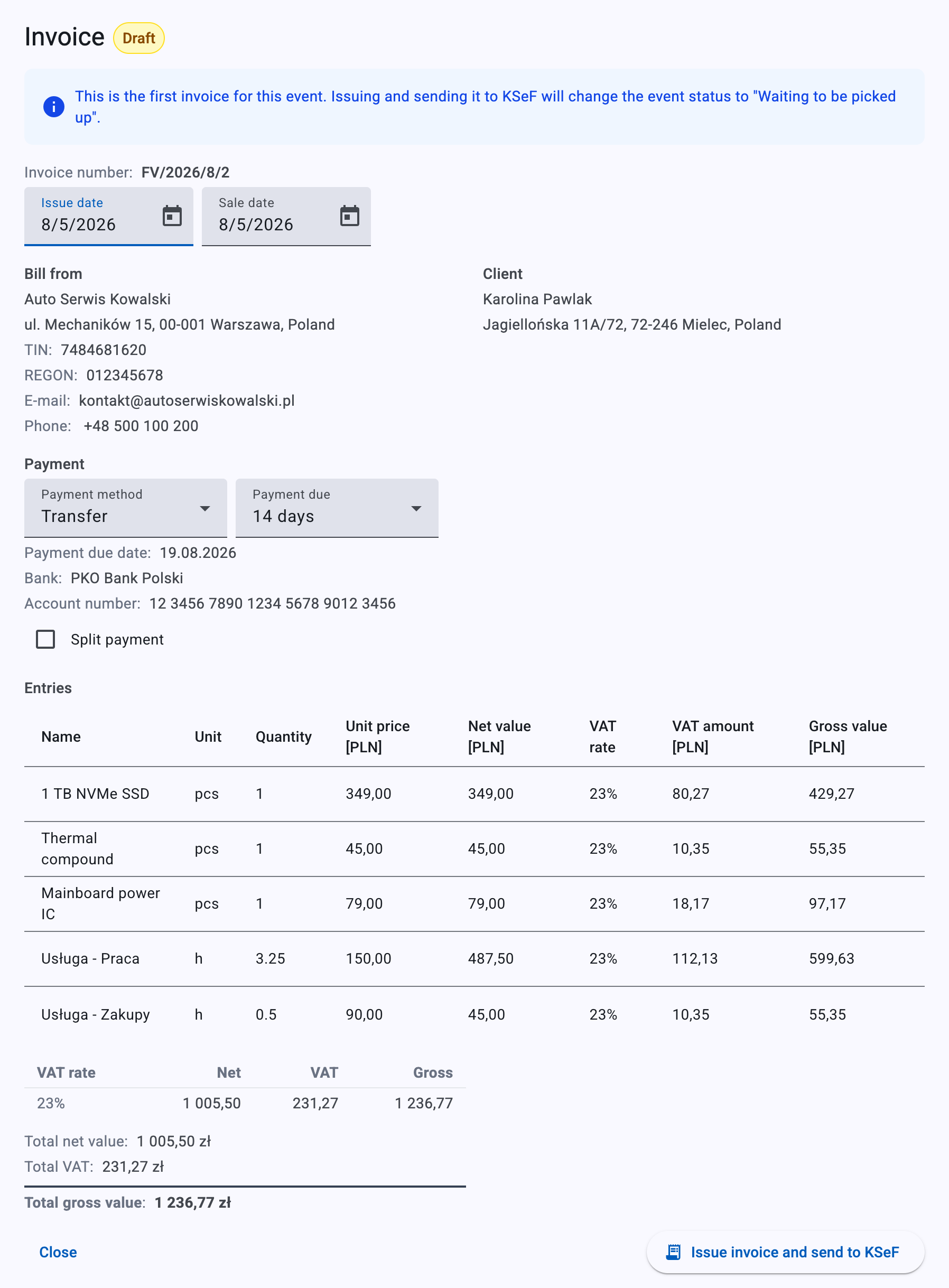
Machine ready — the invoice assembles itself from what you already recorded: parts as their own lines, hours merged into service lines by type. You check VAT, payment and dates; there simply is no “add line” button.
-
06
Issue and KSeF
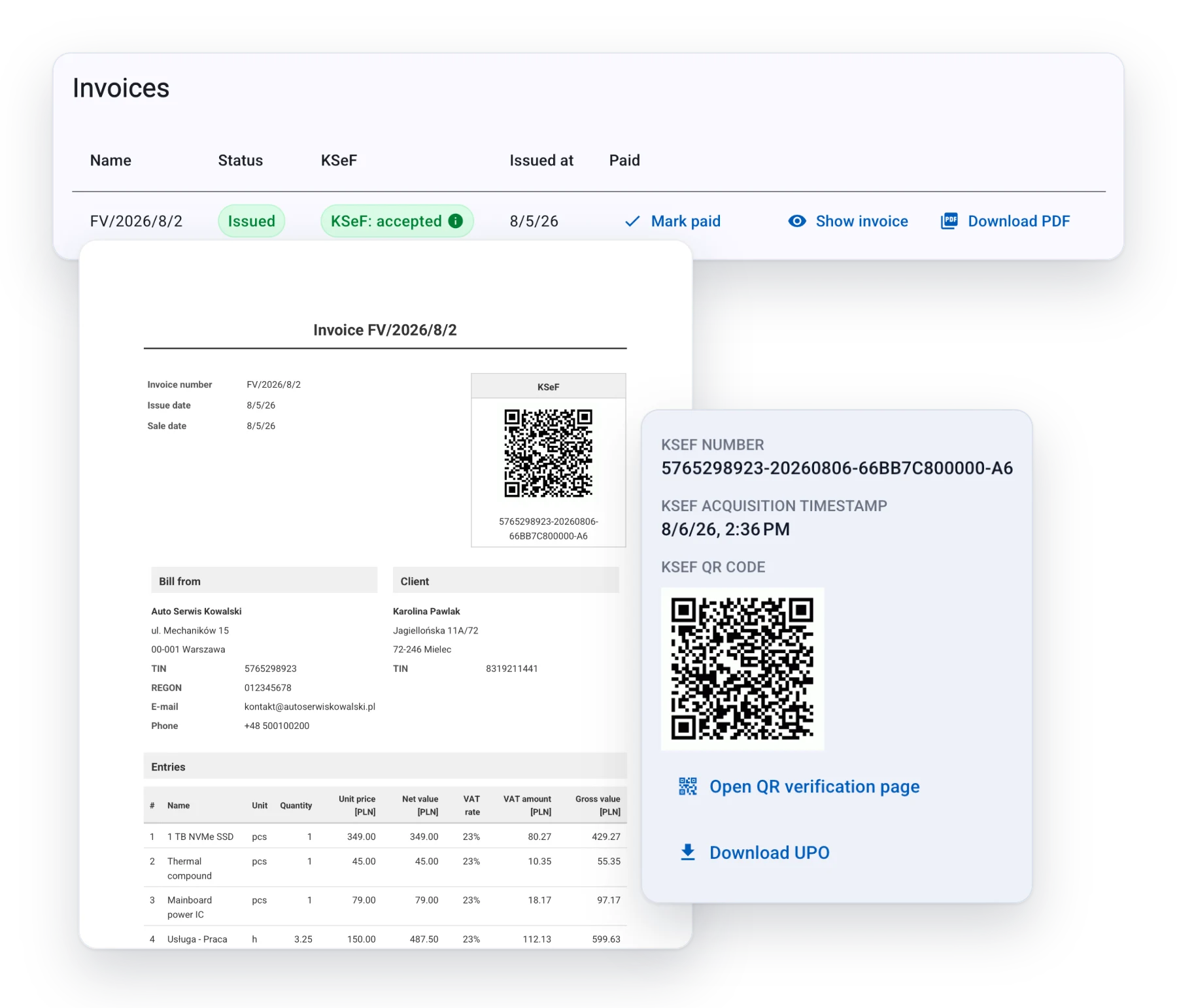
One click: the next number in your scheme, both parties' details frozen, the FA(3) XML, an encrypted session. Back come the KSeF number, the UPO and a verification QR code — on the invoice and on its PDF. The job moves itself to Waiting to be picked up.
-
07
Payment and pick-up
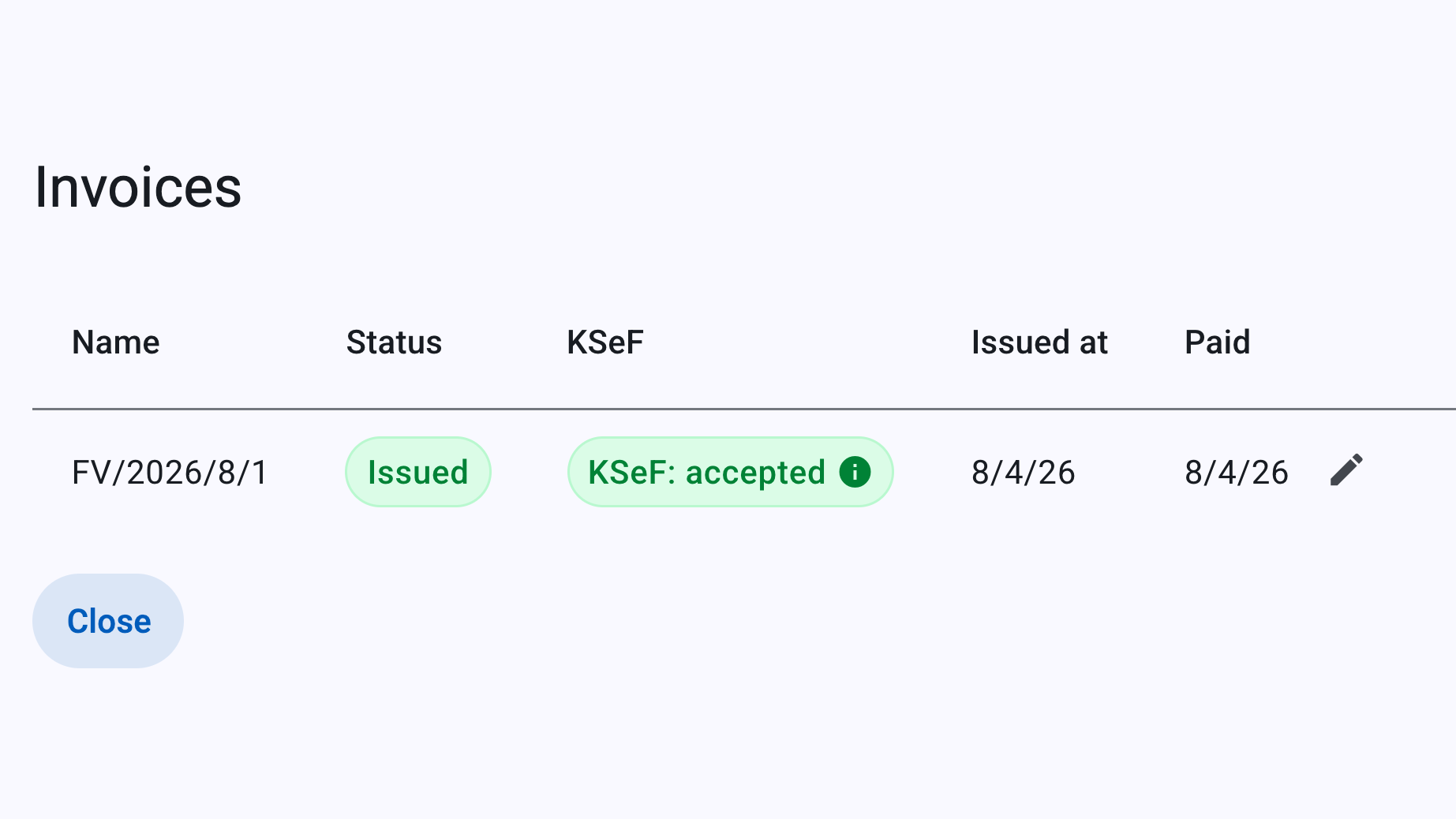
Mark the invoice paid with a click, with a date you can correct afterwards or take back — and only a document KSeF has accepted can be marked paid, so the column can't quietly lie to you. The customer collects, the job moves to Received and closes together with its paperwork: intake form, invoice, UPO. All of it stays in the customer's history.
Getting started
Set it up once, then just work
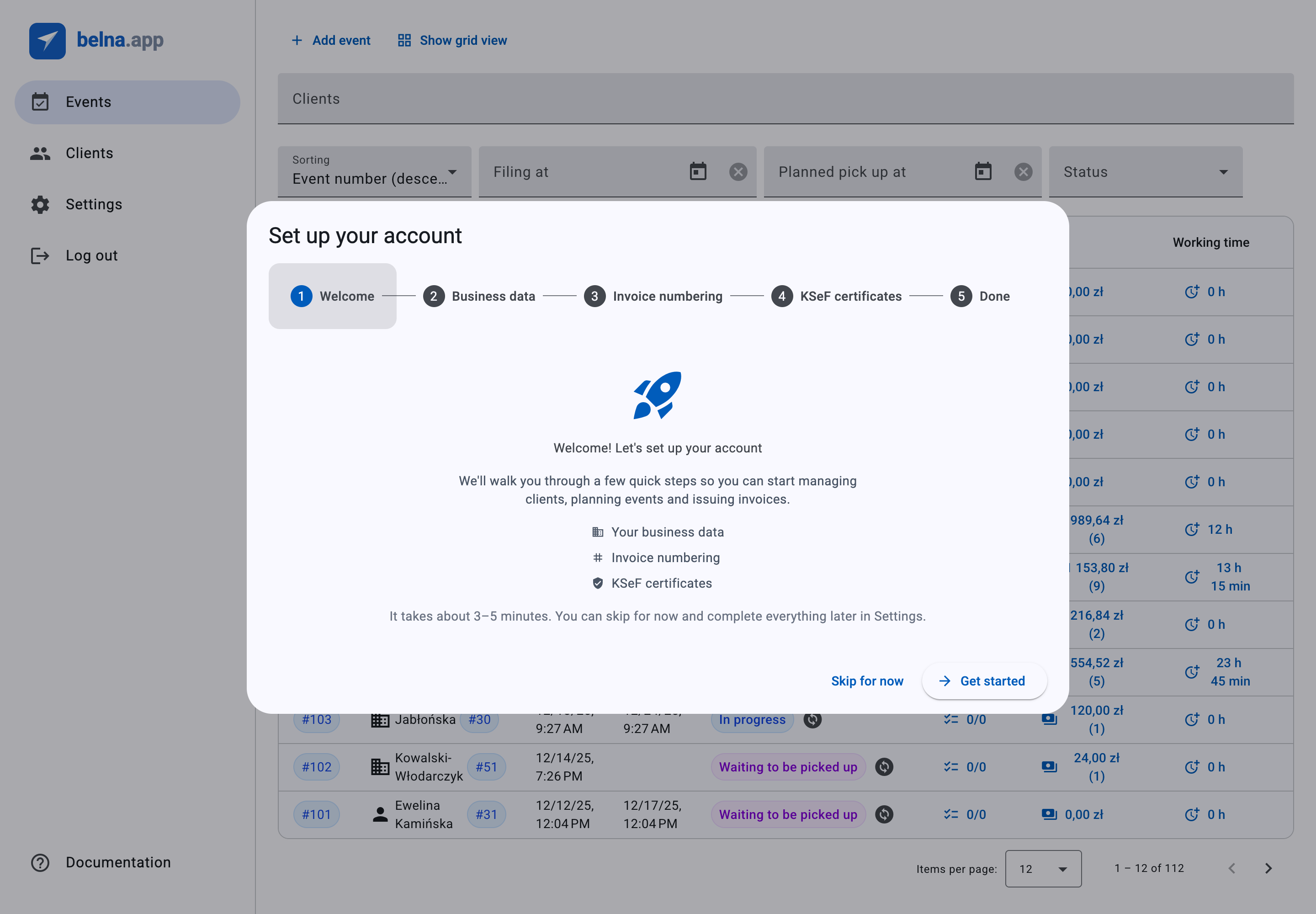
A wizard opens on your first sign-in and walks you through the three things invoicing depends on. You can skip it and finish later in Settings — nothing is forced on you up front.
- 1
- Your business data. Name, address, NIP, bank account and whether you're a VAT payer. This becomes the seller block on every invoice.
- 2
- Invoice numbering. Pick a prefix and one of five numbering schemes; a live example shows exactly what your next number will look like.
- 3
- KSeF certificate. Upload the certificate with its key and press Test connection — the app really signs in to KSeF with your NIP. Better to find that out on a quiet Tuesday than with a customer at the counter.
Pricing
One plan, everything included
No tiers where KSeF only shows up in the pricier one. You start with 14 days free, then pay for the next 30 days whenever you decide to.
belna.app
The full app from the first day of your trial: jobs, intake forms, margin, invoices, corrections and sending to KSeF. Nothing is held back until you pay. We keep developing the app and looking after its security, and every fix reaches you on its own.
What's included
- Jobs with parts, hours and photos
- Intake forms as PDF
- Margin on every job
- Invoices and corrections sent to KSeF, with UPO
- Client records with job history
- New versions and fixes at no extra cost
For every 30 days
29 zł gross
23.58 zł net + 23% VAT
Start your 14-day free trialFirst 14 days free. You pay one-off through PayU — nothing renews by itself and we never store your card. Paid days stack on top of whatever you have left.
Frequently asked questions
-
Because that one starts at a blank invoice. The parts list, the hours, the drop-off photos and the job history still live in your notebook and your phone, and you retype them at the end. Here it works the other way round: you run the job and the invoice falls out of it — you cannot even add a line to an invoice by hand, because every line has to come from a part or an hour logged on the job. And since invoicing software never sees your buy price, it can't tell you the thing that matters most: what you actually kept on that job.
-
And she still will — this doesn't replace her, you just stop feeding her paper. What she can't do is show you, the moment you open a job on Thursday, what's actually left on it — or notice that on Friday you fitted a part to an invoice you issued on Tuesday. The honest limit: the app sends her nothing — you still hand over the documents yourself.
-
Yes. Invoices are filed under your own identity, so an online certificate has to be on the account before you can issue anything — without one, issuing is blocked. You collect it once from the Ministry's portal and upload it with its key; the app refuses a key that won't open with your passphrase or doesn't match the certificate. Test connection then performs a real KSeF sign-in, so you find out now rather than on your first invoice. That is the only time the portal is needed for issuing — you'll still go back to it for the purchase invoices your suppliers file, and again when your certificate expires.
-
You see the draft first, and nothing goes anywhere until you approve it. The app refuses to build an invoice without your business data, without a valid client, and without at least one non-zero line, and the form will not let you set an issue date outside the legal window — no earlier than 30 days before the sale, no later than the 15th of the following month. If you're VAT-exempt you can't issue without naming the legal basis. And if KSeF still refuses the document, it comes back to draft with the reason verbatim and its number intact. An accepted invoice can't be cancelled — it's put right with a correction, and the app writes that for you too.
-
To both: no — and better that you know now. There is no stock control: a part is a name, a quantity, a buy price and a sale price typed on the job; nothing is decremented and nothing warns you the filters are running out. belna.app watches what leaves the workshop and what you kept on it, not what sits on the shelf. The account is single-person too: no employee logins, and no record of who worked which hours. If two people share one job board, this isn't the tool for you yet.
-
Yourself, in two minutes: sign up, confirm your email address with the link we send, and your 14 free days start — no card required.
Try it on your own jobs
Sign up and run real jobs through belna.app for 14 days — no card, no commitment.